Onboarding for Micro SPOT
Sole proprietorships and partnerships follow this path. SPOT first proves which company it is working for, then collects the bank statements that power the Micro SPOT, and finishes by generating your first report.
The path you are on is not a choice you make at sign-up. SPOT reads your business structure from your SSM certificate and routes you automatically: sole proprietorships and partnerships get the Micro SPOT experience, Sdn Bhd companies follow the Full SPOT path.
Before you start
- A finished account with a verified email (see Getting started).
- Your SSM registration certificate as a PDF, up to 100 MB. Use the original document from SSM, not a photo or a scan, and make sure it is not password protected.
- Bank statements from 3 different months, one statement per month, as PDFs.
Step 1: Verify your company with your SSM certificate
Upload your SSM certificate
The screen is titled Start your SPOT with your SSM certificate. The page header shows Step 1 of 4 (Confirm your company, Add financial documents, Tell us about your financing, Review and generate). Drop the PDF into the upload area or choose Browse files. If you are unsure which file to use, open Which SSM document can I upload?: for a sole proprietorship or partnership, the SSM e-Info Business Profile or the Certificate of Registration (Form D) both work. A Help link in the page header opens this documentation.
Watch SPOT read the document
A progress panel groups the work into four stages: Receiving your file, Reading your document, Finding your company details, Preparing your review.
Check the details SPOT found
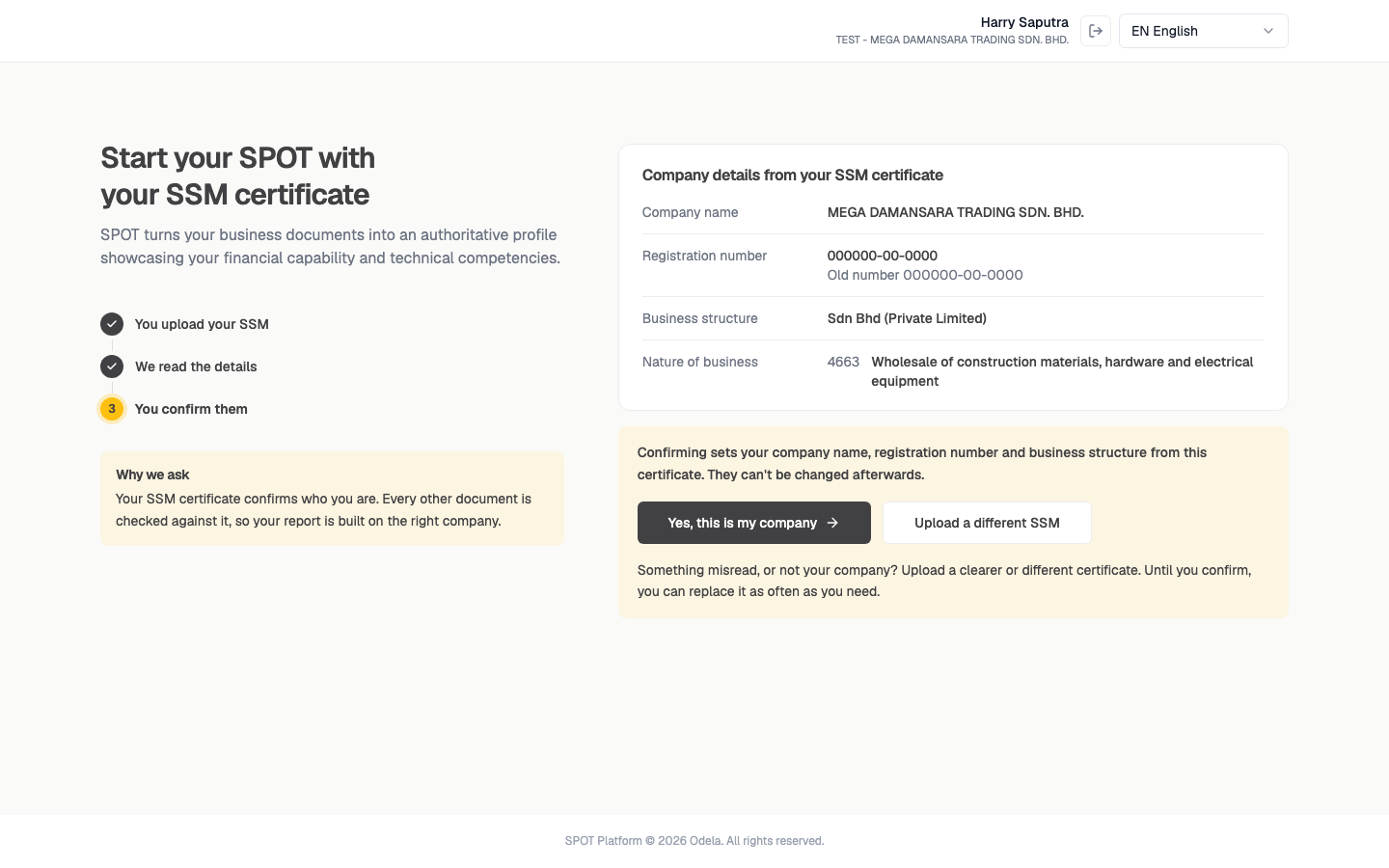
The review card, Company details from your SSM certificate, shows the company name, registration number (with any old number), business structure, the date your registration is valid until (flagged Expired when past), and the nature of business. If the registered name differs from the name you signed up with, SPOT says so before you continue.
If SPOT could not read a detail, it says Not available rather than guessing. If it could not determine your business structure with confidence, it asks you to upload a clearer certificate. If the document is not an SSM certificate at all, or processing fails, the page tells you and returns you to the upload step.
Confirm the company
Choose Yes, this is my company. Two things happen:
- Your company name, registration number and business structure are locked from the certificate; they cannot be changed afterwards. Until you confirm, nothing is locked and you can replace the certificate as often as you need.
- SPOT continues to the financing documents step.
This confirmed company is the anchor for everything that follows: every later document is checked against it, and your report is built on this identity.
Step 2: Add your bank statements
The screen is titled Add 3 months of bank statements to see your financing readiness. For Micro companies this step is required, and it works like a gate: your Micro SPOT cannot be generated until three statements from three different months have been verified against your company.
Upload statements from three different months
Drop the PDFs into the upload area, up to 3 files, each up to 100 MB. As each statement is processed, its row shows one of these states:
- Matches your company — the statement counts towards your three months, and the row names the statement month.
- The name is close to your company name but not identical — a near-match. You decide: confirm with Yes, this is my company, or remove the document.
- Removed: this file does not name your company (or names a different company, or could not be read) — the document is taken out of the flow automatically, shown as a removed row with the reason, and you upload a clearer copy instead. Removing a file asks for confirmation first.
Continue when three months are verified
The progress line counts … of 3 months verified. When all three match, the screen confirms it and the continue button takes you to the last step. If you leave and come back, the page resumes from the server’s record, so verified statements stay verified.
Step 3: Add active financing, then generate
Tell SPOT about financing you already have (optional)
The Active Financing screen collects your existing financing arrangements: financing scheme, agency, tenure, total amount and outstanding balance. You can add up to 10 arrangements, and there is a clear I don’t have active financing option. Existing repayments are part of what a lender looks at, so adding them makes your eligibility reading more accurate. If you have none, skip this step.
Review and generate
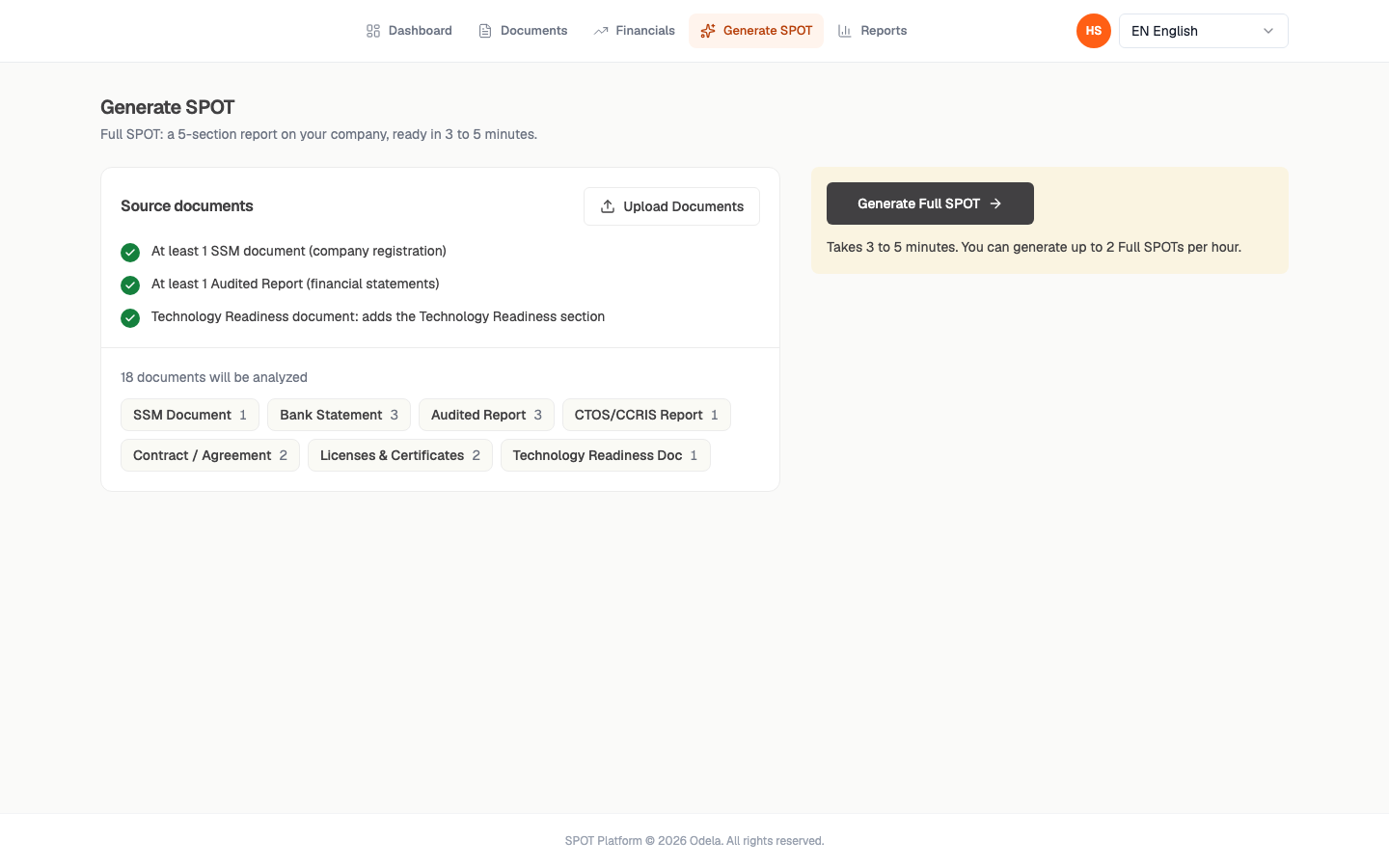
The review screen, Generate Report, lists the documents and financing that will go into your Micro SPOT. Choose Generate Micro SPOT. Generation is quick, and you can leave the page and come back anytime. When it finishes, the Congratulations screen links to your report on the dashboard.
What happens next
Your Micro SPOT appears on your dashboard, with your financing eligibility reading, cash-flow figures and any matched products from institutions you are connected to. To add later documents — a credit report, contracts, licences — use the Documents page; see Managing documents.
If something goes wrong
| What you see | Why | What to do |
|---|---|---|
| “Please upload a PDF file.” / “That file is over 100 MB. Please upload a smaller PDF.” | The uploader accepts PDFs only, up to 100 MB. | Export the document as a PDF under the size limit. |
| “Processing failed. Please re-upload a clear, unencrypted PDF.” | The file could not be read, often because it is a photo, a scan of poor quality, or password protected. | Use the original SSM PDF and remove password protection. |
| “That document is not an SSM certificate.” | SPOT classified the upload as something else. | Upload the SSM registration document itself. |
| A statement is removed with “does not name your company” | The name in the statement does not match your confirmed company. | Upload statements issued to your registered company name, or a clearer copy. |
| The page lost your place | Nothing is lost. | Sign in again; the flow resumes from what the server has already verified. |