Managing documents
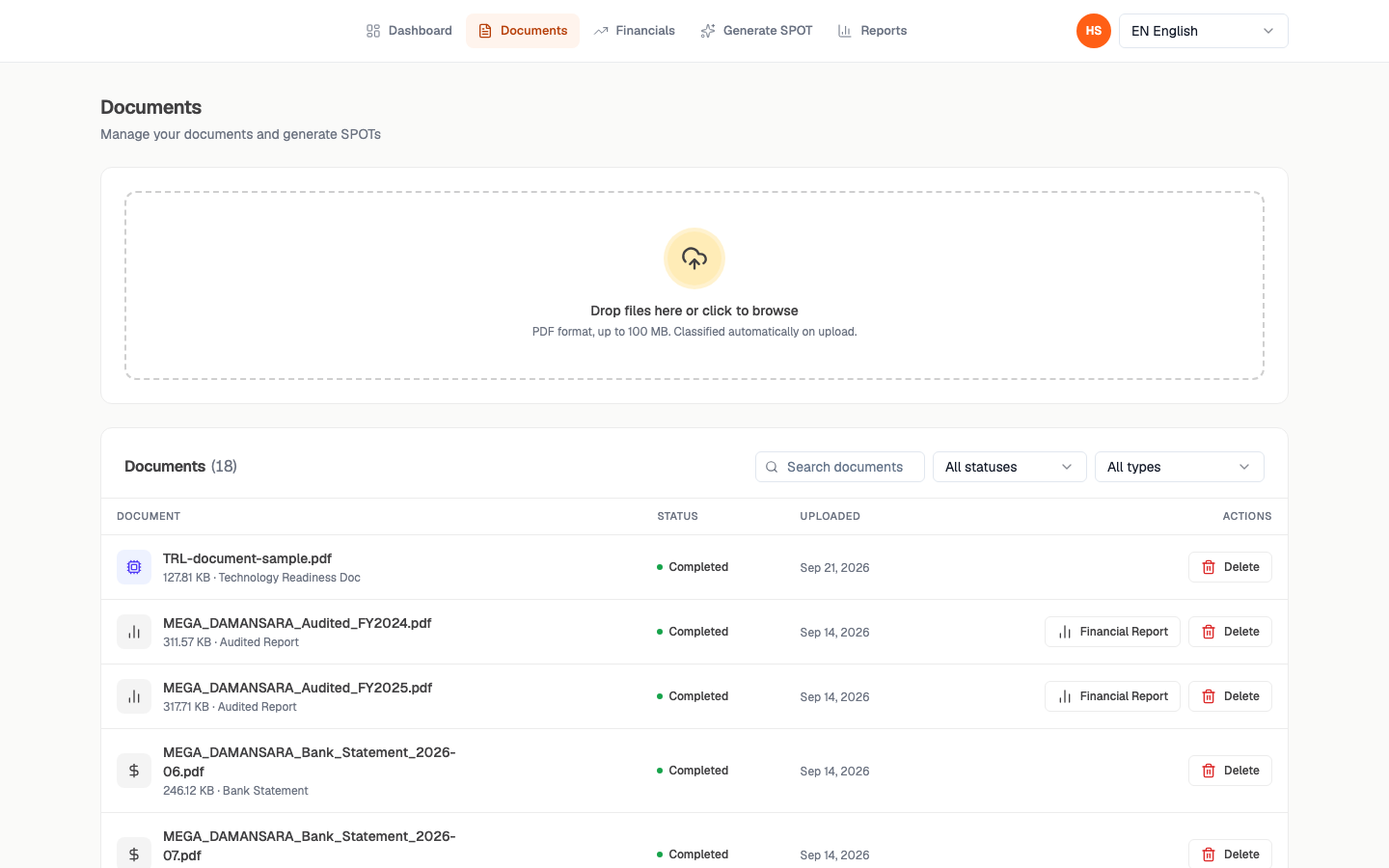
Everything SPOT knows about your company comes from the documents you upload. The Documents page is where you add them, watch them being read, fix what failed, and dispute anything that was read wrongly.
Before you start
- Documents as PDF files, up to 100 MB each. Other formats are refused: the upload area states PDF format, up to 100 MB.
- The clearest originals you have. Scans are checked for readability before upload.
Upload a document
Drop the file or browse
Drag files onto the upload area or click it to browse. You can upload several at once.
Let the quality check run
Before anything is sent, SPOT measures how readable page one of the PDF is:
- If a document is too blurry for the text to be read accurately, a dialog titled This Document is Too Blurry blocks the upload and asks you to Choose Another File. Try a clearer scan or a higher resolution version.
- If a document is merely on the low side, a dialog titled Image Quality a Bit Low warns that text recognition might not be perfect, and Upload Anyway is your choice.
Watch it being read
Each upload is classified automatically — SPOT works out whether it is looking at an SSM certificate, an audited report, a bank statement, a credit report, a contract or something else — and its row shows progress while it is being read. The status filter above the table has four states: Needs attention, Processing, Completed and Failed.
Duplicate uploads are refused, quietly
If you upload a file that is already in your documents — the same bytes, even under a different file name — SPOT tells you the file “is already in your documents, so it was not added again.” and creates no second entry. Nothing is overwritten and nothing needs cleaning up.
What the statuses mean
| Status | Meaning | What to do |
|---|---|---|
| Processing | SPOT is still reading and classifying the file. | Wait; the row updates itself. |
| Completed | The document was read and can be used in reports. | Nothing. |
| Needs attention | The company check did not pass: the name found in the document is a near-match, does not match, or could not be read. | Resolve it; see the next section. |
| Failed | Reading did not finish or the document could not be processed. | Delete it and upload a clearer copy. |
The banner above the table reads ”… document(s) need attention before they can be used in SPOT reports.” and appears only when something needs you; Show them filters the list to just those rows.
Resolve a name mismatch
Every document is checked against your confirmed company identity from onboarding. When that check does not pass — the name found in the document is close to but not identical with your verified company, names another company, or no name could be read — the row is held out of your reports until you decide. Open the row and SPOT shows a comparison: the entity found in the document next to your verified company, with the match confidence.
- A near-match (the name is close but not identical) offers Confirm Entity Match: telling SPOT the document is yours releases it for reporting immediately.
- A clear mismatch or an unreadable name offers Re-Upload Correct Document instead: the rejected document is set aside, you send the right file, and SPOT links the replacement to the rejected one so the swap is on the record.
Delete a document
The delete action on each row asks for confirmation with the wording that the document “will be removed from your documents and can no longer be used in new SPOT reports”. Deletion cannot be undone. Reports you have already generated keep their content; only future generations are affected.
Documents managed in the Dataroom
Some rows carry a Managed in Dataroom badge. These documents live in your company’s ODELA Dataroom — the document store your company uses beyond SPOT — rather than being uploaded through this page. They count as source documents just the same. This page shows their state, but the delete action is not offered here: management happens in the Dataroom.
Check what SPOT read and dispute mistakes
Open a document to see Extracted Document Data — the figures and details SPOT read from the file. Audited reports additionally show the structured financial report with balance sheet, income statement and ratios, including a formula explanation for each ratio. If a value is wrong or missing, use the flag icon on the field:
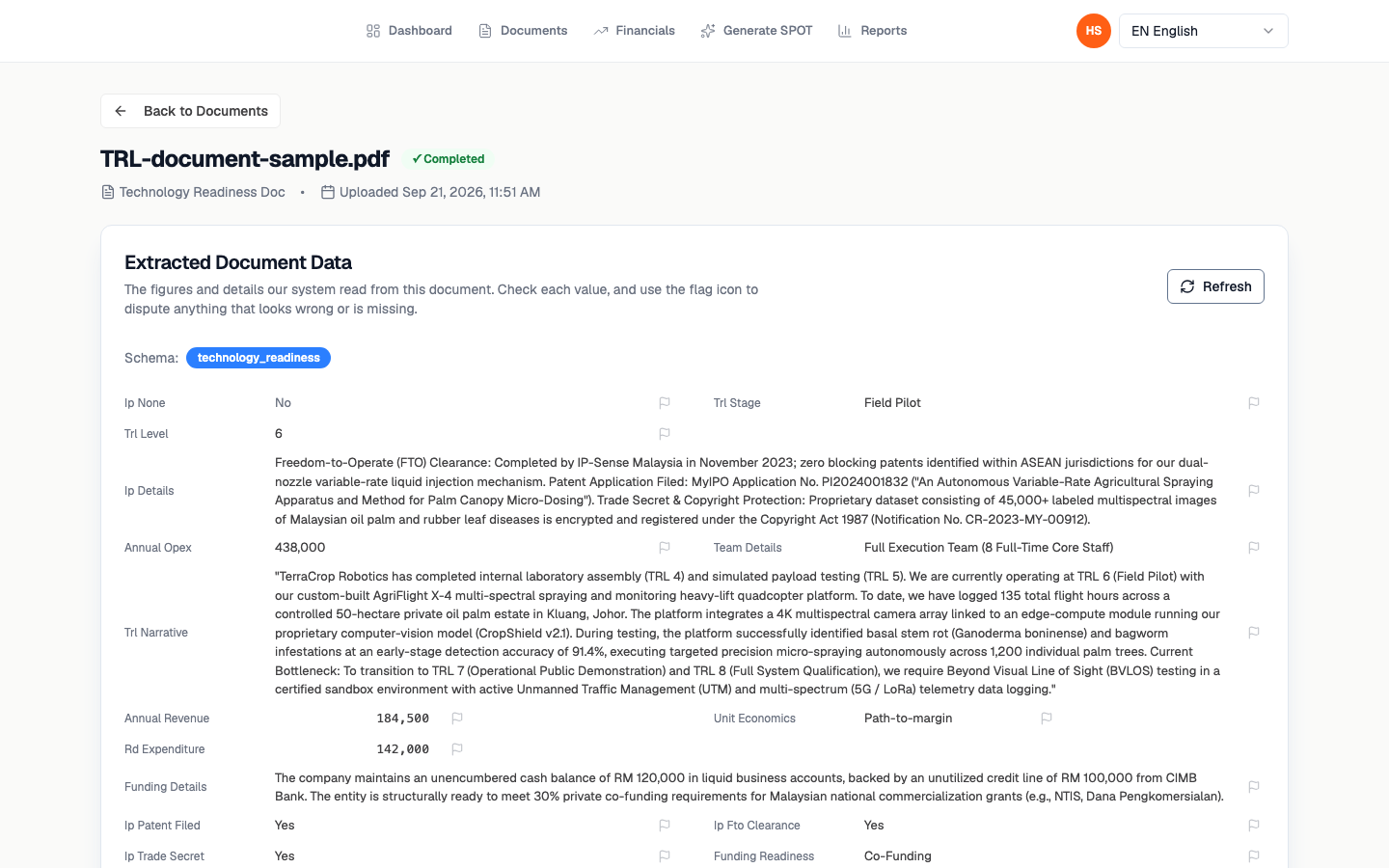
- Dispute this value opens a dialog showing the field and the original value.
- Enter the corrected value and, optionally, a reason, then Submit Dispute.
- The dispute is reviewed by Odela. While it is under review the field is marked Under review; if your correction is accepted it shows Corrected, otherwise Rejected.
What happens next
Documents on file decide what your next report can contain. See Generating and regenerating for how a new run picks them up, and Document types for what each kind of document adds.