Generating and regenerating
The Generate SPOT page starts a report run. Which report you get is decided by your company type — there is nothing to choose: sole proprietorships and partnerships generate a Micro SPOT, Sdn Bhd companies generate a Full SPOT. In the rare case the type could not be determined from your SSM certificate, SPOT treats the company as a Micro company, so you always have a report you can generate.
Before you start
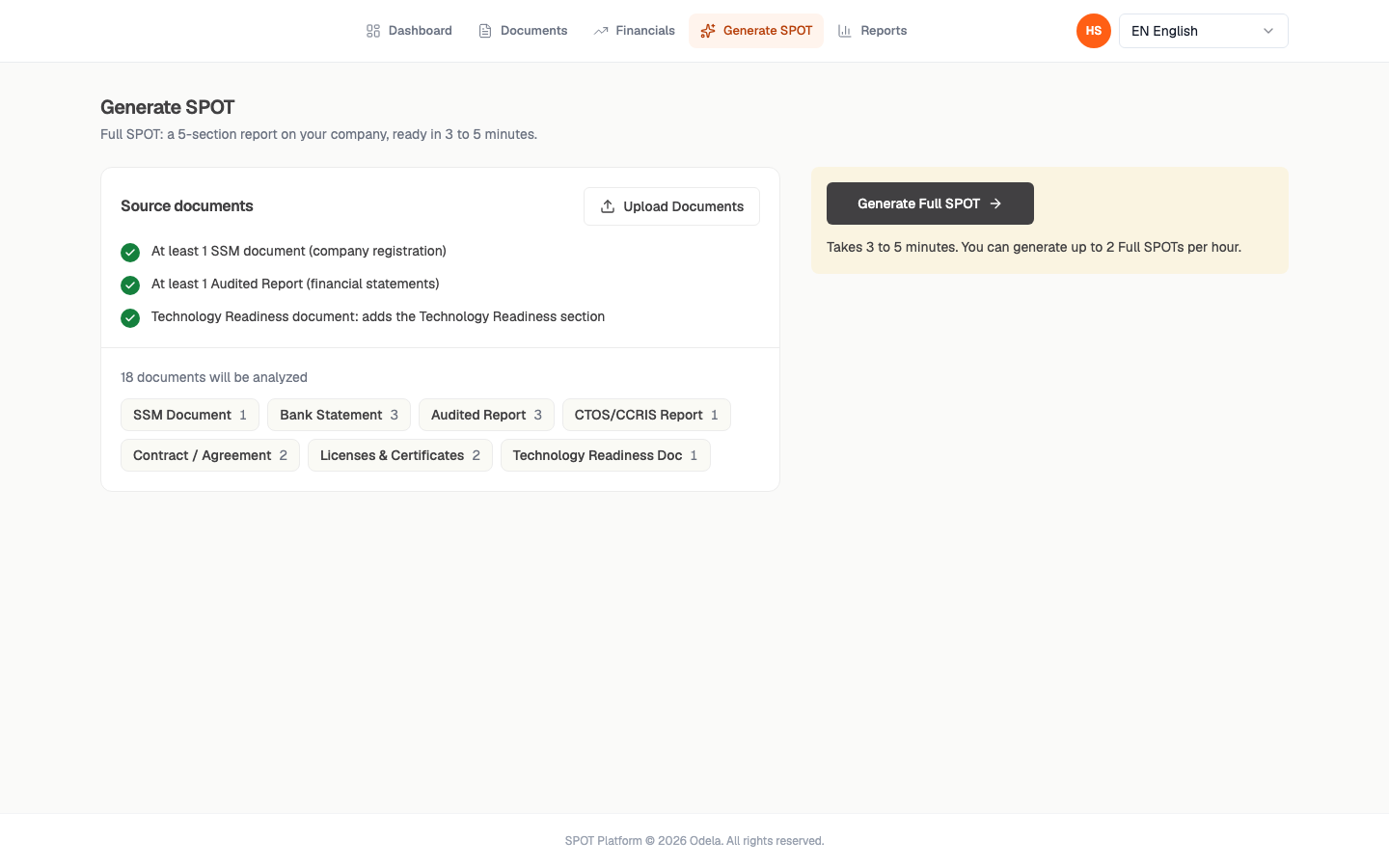
The page lists its requirements as tiles with On file or Upload next to each:
- Micro SPOT needs 1 SSM document and at least 3 bank statements.
- Full SPOT needs at least 1 SSM document and at least 1 audited report. A Technology Readiness document is optional and adds its section to the report.
- No document may still be processing — the page warns that it is “Waiting for … document(s) to finish processing”.
- You do not pick documents. Every completed document on file is included automatically; the page says how many “documents will be analyzed”.
Two extras are specific to the Micro SPOT:
- Active Financing — up to 10 existing arrangements (scheme, agency, tenure, total, balance) for a more accurate eligibility reading.
- Self-Declared Revenue — your actual monthly revenue for the 3 most recently completed calendar months; all 3 months are required. The form carries the definition SPOT uses — total sales income before deducting expenses such as stock costs, rent, salaries and utilities — and a declaration that the figures come from your business sales records. Removing a declaration asks you to confirm that generation will run without it.
Start the run
Choose Generate report. The button stays unavailable until the requirements are met. Timings and limits, as the page states them:
- A Full SPOT takes 3 to 5 minutes. You can leave the page and come back; generation continues on our side and the progress picks up where it was.
- Each company can start up to 10 Micro SPOTs per hour and up to 6 Full SPOTs per hour — generous ceilings, stated on the page itself.
Watch the progress
While the run continues, the page shows each stage with a plain-language label — Checking your documents, Reading your documents, Extracting key information, Analysing your business, Saving your report, Preparing your report, Verifying data accuracy, Putting your report together — and, for a Full SPOT, a panel titled Your report as it is written with every section marked Done, Writing now or Waiting.
The progress screen is designed to survive real-world connections:
- If the live connection drops, the app reconnects by itself and falls back to asking the server for status until the stream returns.
- If the connection is genuinely gone, the page tells you You are offline and resumes automatically.
- Refreshing the page or closing the tab does not cancel the run: come back to the Generate page and it reattaches to the run in progress. The dashboard shows the same through its Your SPOT is being generated panel with Watch live progress.
- If a run appears stuck, the page says Generation appears stalled. Please try again. rather than waiting forever.
- Starting a new run while one is already going does not create a second one: you get A generation is already in progress and the page follows the running generation.
Regenerate
Choosing Regenerate on the dashboard, or opening the Generate page later, starts a new run from the
documents on file today. Reports are computed section by section, and a section whose inputs have not changed
can be served from the earlier result. To rebuild everything from scratch — for example after you corrected a
disputed value and want every section recomputed — open the Generate page with ?force=true at the end of the
address. A forced run ignores earlier section results entirely; the hourly limits still apply.
New documents never change an existing report by themselves. The strengthening panel on the dashboard says the same: add the documents, then generate again.
When a run fails
A failed run shows Generation failed with a reason and a Try again button, plus a shortcut to review your documents. The reasons you can see, in the app’s wording:
| What you see | What it means | What to do |
|---|---|---|
| “We couldn’t finish your report. Please try again.” | The run stopped partway. | Retry. If it repeats, check your documents for failed reads. |
| “Generation took too long and timed out. Please try again.” | The run exceeded its time budget. | Retry; the hourly limit still applies. |
| “We couldn’t build your report from the current data. Please try again, or contact support if it keeps happening.” | The data on file produced a result that could not be assembled into a report. | Retry once; if it persists, contact Odela support. |
| “The report engine couldn’t produce output for this data. Please try again.” | A section had nothing usable to work from. | Check that the required documents completed processing. |
| “Generation failed after multiple attempts. Please try again in a few minutes.” | Several internal attempts failed. | Wait a few minutes, then retry. |
| “Our report service was temporarily unavailable. Please try again.” | The service was briefly unavailable. | Retry shortly. |
Your previous report is never deleted by a failed run — the dashboard keeps showing the last completed one.
What happens next
When the run completes you go straight to the report (Micro) or the dashboard (Full). See Reports and PDF for reading and downloading, or Reading your dashboard for the summary view.