Reading company details
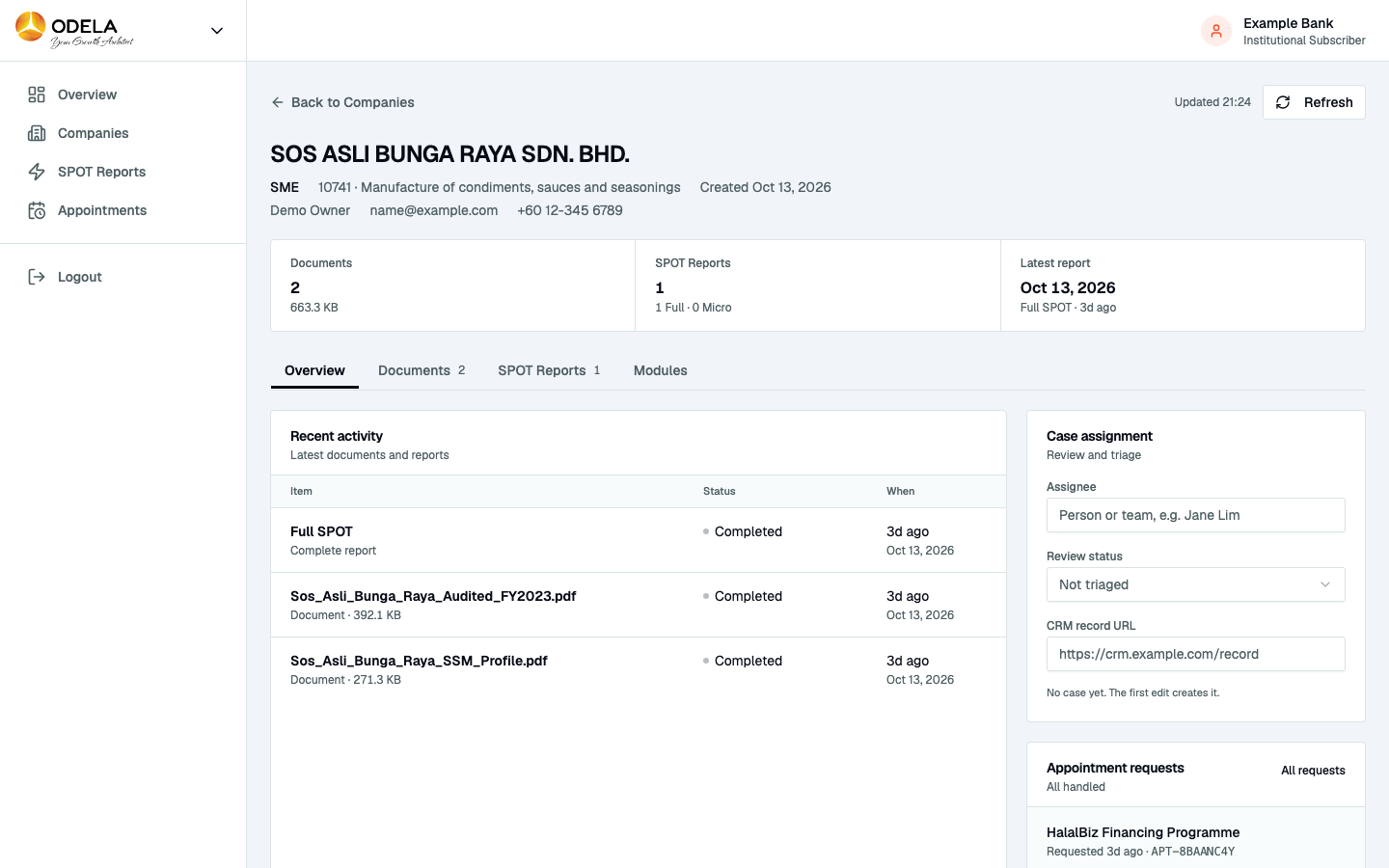
Selecting a company anywhere in the portal opens its details page: the facts SPOT holds about the SME, every document and report, the analysis modules, and — for Institutional Subscribers — the case assignment and appointment requests for this company in one place.
The header
The header names the company and shows its type, industry, location and when it was added, plus a contact line with the SME’s registered contact person, email and phone. A note shows when the page was last refreshed, with a labelled Refresh button beside it.
Key figures
A strip of figures summarises the company: Documents (count and total size), SPOT Reports, and Latest report. If a list fails to load, its figure reads “Unavailable” rather than a misleading zero.
The tabs
| Tab | What you find there |
|---|---|
| Overview | Recent activity (the newest documents and reports), the case assignment card, appointment requests for this company, and a document-and-report status breakdown |
| Documents | The company’s document list with status filters — see Documents |
| SPOT Reports | This company’s Full SPOT and Micro SPOT reports, with status filters — see SPOT reports |
| Modules | The analysis modules for the company’s latest completed Full SPOT — see Analysis modules |
Tab labels show counts where a count exists (Documents, SPOT Reports).
What happens next
- Generate or read the modules from the Modules tab: Analysis modules.
- Set an owner or review status in the case assignment card: Case tracking.
- To act on documents — upload or delete — go to Documents.
Generating a Full SPOT report for a company is done by the Odela team, not from the partner portal; if a company is missing its Full SPOT, contact your Odela contact.