Signing in to the partner portal
SPOT’s dashboard serves two kinds of institutions from one address: the Odela team console and the partner portal for Institutional Subscribers. Which one you get is decided by your account’s role, so the only thing you must get right at login is the portal tab.
Before you start
- Your partner portal account (email and password), set up with your institution by the Odela team.
- Nothing to install; the portal runs in a modern desktop browser.
Choose the partner portal
Open the login page
The login screen shows two portal cards side by side.
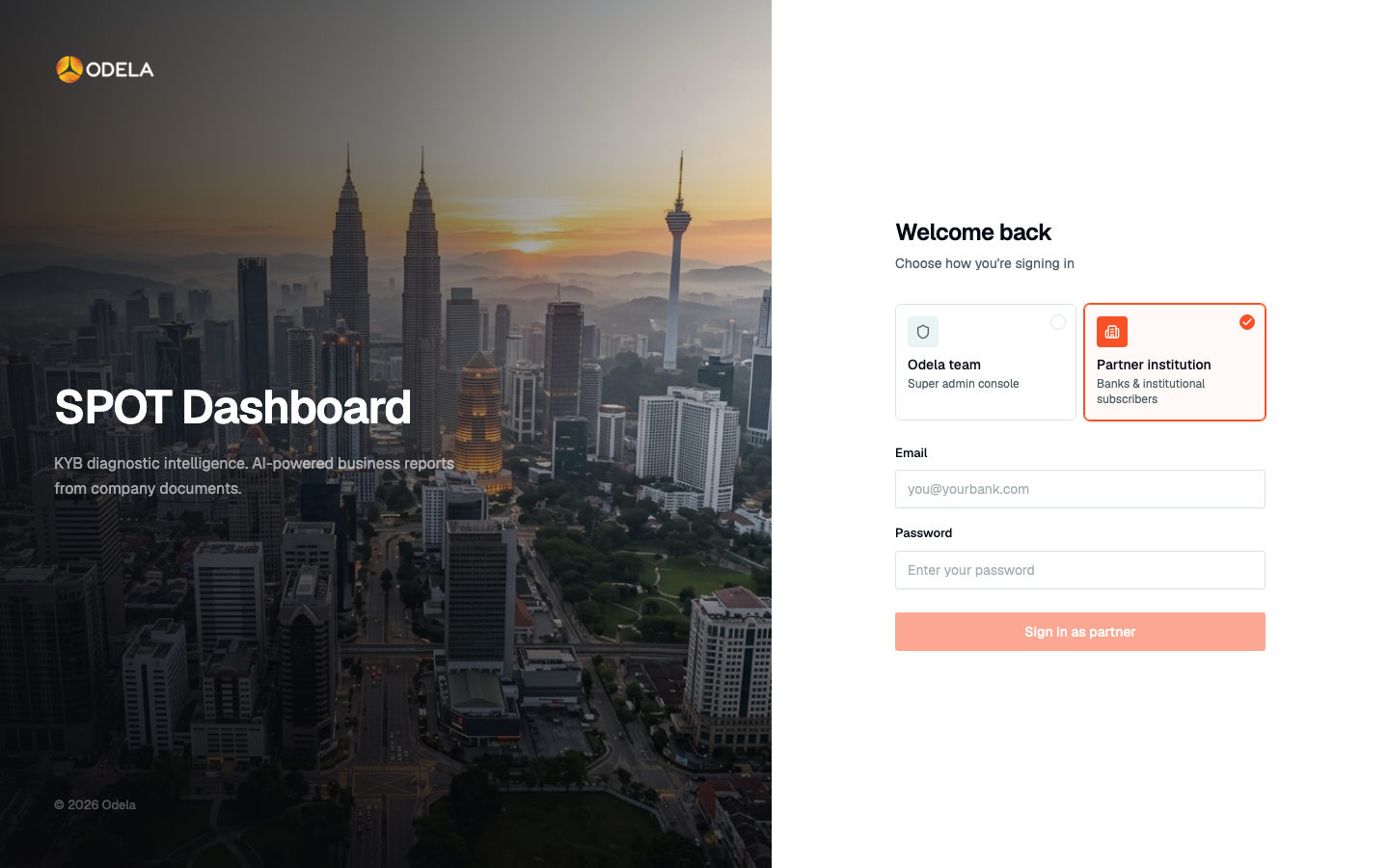
Select Partner institution
The card is subtitled “Banks & institutional subscribers”. You can go straight to the right portal with a shareable link that pre-selects it, and the portal you used last on that device is remembered for next time.
Sign in
Enter your email and password and select Sign in as partner. Successful sign-in lands you on Overview.
If the wrong portal is selected
The portal checks the account’s role. A valid account used on the wrong tab is rejected with a message that names the right tab, and the login screen offers a one-click switch:
| What you see | What it means | What to do |
|---|---|---|
| “This is an Odela admin account. Sign in from the Odela tab.” | Your account belongs to the Odela team console, not the partner portal | Select the offered switch to the Odela team tab and sign in there |
| “This is a partner account. Sign in from the Partners tab.” | Your account is a partner account, but the Odela team tab was selected | Select the offered switch to the partner tab |
| “This account doesn’t have access to the SPOT Dashboard.” | The account is a normal SPOT business account for an SME owner, which has no dashboard access | Use the SPOT business dashboard instead |
A rejected attempt creates no lasting session, so nothing from the failed sign-in carries over.
How your session behaves
- Working keeps you signed in. While you are active in the portal, your sign-in is renewed automatically in the background, so you are not interrupted in the middle of review work.
- Half an hour of inactivity signs you out. If there is no keyboard, mouse, scroll or touch activity for about 30 minutes, the portal ends the session and returns you to the login page.
- You land back where you were. After signing in again following an inactivity sign-out, the portal returns you to the page you were reading.
- Signing out clears your data. When you sign out, cached page data is discarded, so the next sign-in on the same device starts fresh.
Keep using the portal as normal and you will not be signed out — the inactivity window only closes when nothing at all happens in the browser.
What happens next
Head to Overview for your portfolio figures, or Companies to find a specific SME. If your account is newly created and you see an empty portfolio, no companies are linked to your institution yet — ask your Odela contact to record the links.